
| Table of Contents | ||
|---|---|---|
|
Purpose and scope
eduroam CAT
eduroam CAT is the eduroam Configuration Assistant Tool. Its purpose is to allow authorised eduroam Identity Providers to generate customised eduroam installers for their institution's RADIUS setup on many platforms. It also allows them to test and debug their RADIUS setup. Authorisation for IdPs to use eduroam CAT is determined by the eduroam National Roaming Operator (NRO, a.k.a. the eduroam "federation").
...
The web presence of eduroam CAT is https://cat.eduroam.org
Terms of use
eduroam NRO has the full authority to decide and invite the IdPs from NRO's constituency to use eduroam CAT supporting tool.
Managing my National Roaming Operator
For users with the NRO management privilege, CAT provides a dedicated web interface which allows them to
...
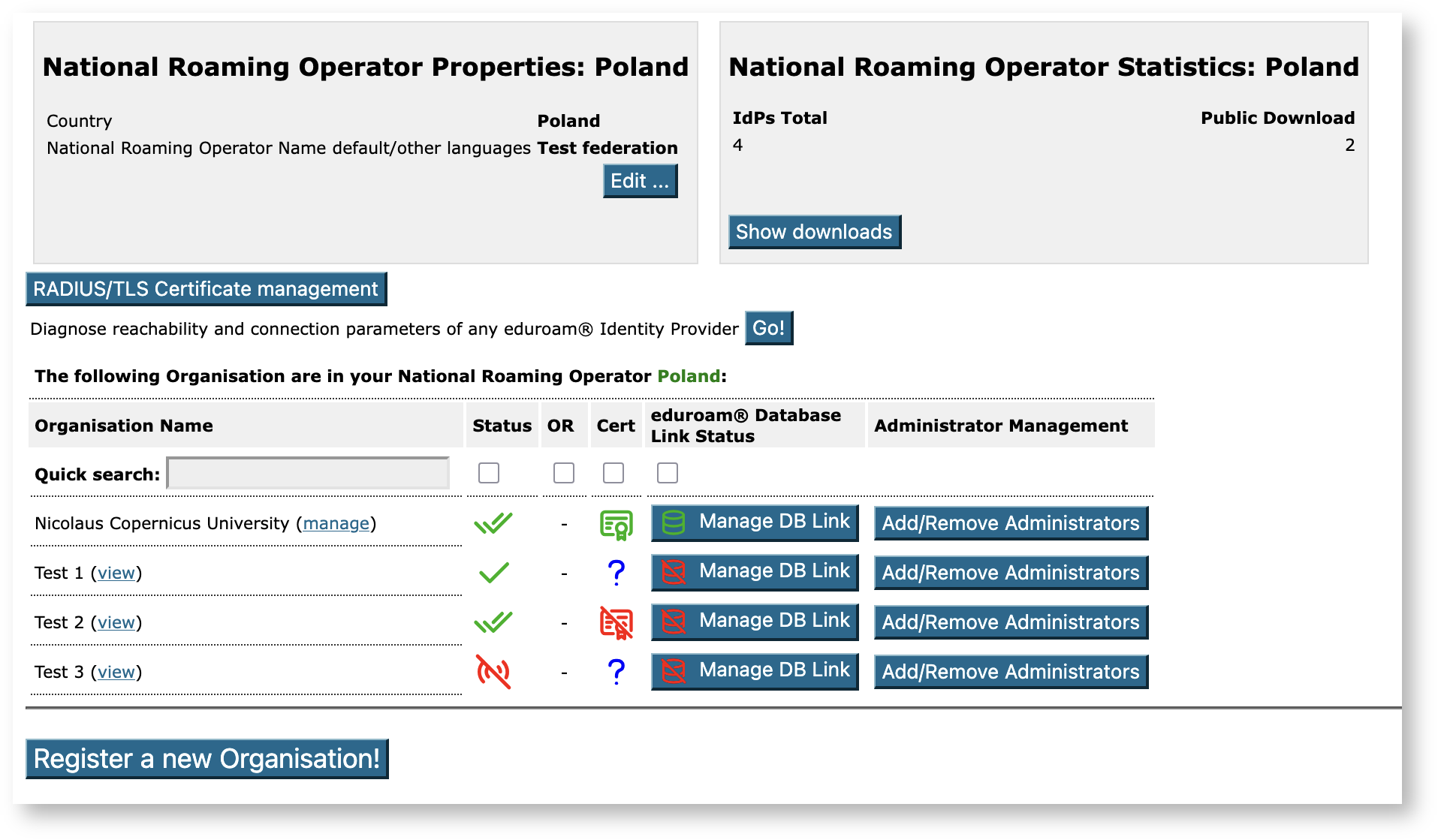
After clicking the button or the link, an overview of the NRO occurs, with entry points for the tasks mentioned above.
NRO Properties
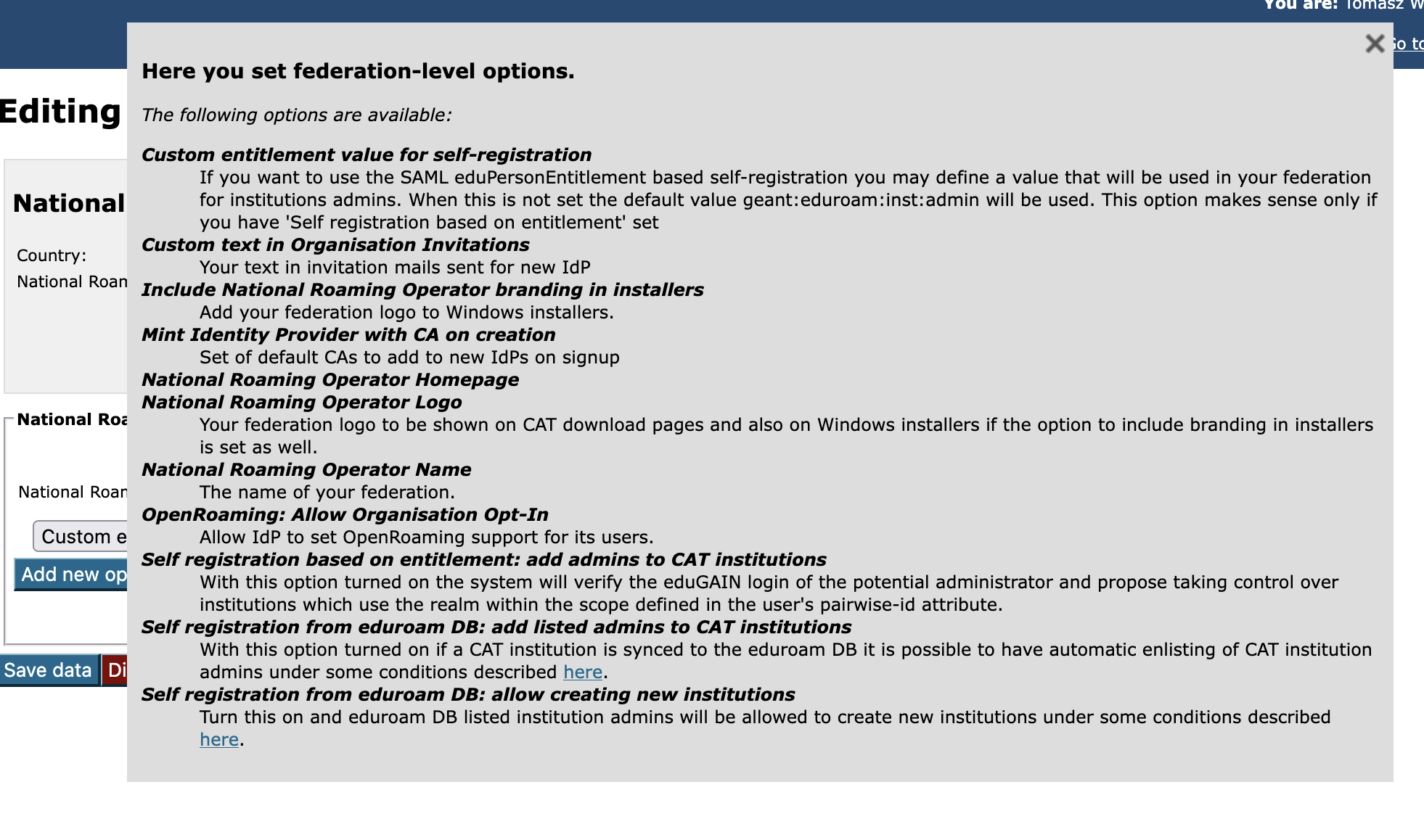
You can personalise the appearance and settings of your NRO in CAT.
...
Use the  icon to display help about the meaning of the options.
The list of organisations
This list is meant to help you with managing your federation but also to support your organisations.
...
Add/Remove Administrators does what it says and you can also use it to take control (become an admin) of an organisation.
Manage the relationship between an IdP in eduroam CAT vs. an IdP in the official eduroam database
Since the official eduroam database contains production-level and "in preparation" eduroam IdPs it would appear that there is no reason why the two databases should not be identical. Still in reality this is not always the case. Sometimes it may be reasonable to prepare a CAT instance before an institution is added to the eduroam database, also there is room for experimental entries in CAT (after all you can prepare everything in CAT and even be able to download installers with a link, but if you do not set any of your profiles as production-ready, the institution will not appear on the user-facing list).
...
Simply select the appropriate entry from the dropdown list and click on Create Link to link the IdP as seen by CAT to the entity as seen by the eduroam database.
Creating new IdPs in CAT
There are two ways in which this can be done:
- creating IdPs using invitations,
- allowing for automatic creation based on the contents of the eduroam database.
See below for details.
Inviting a new IdP to use eduroam CAT
The button on the lower end of the page allows you to send an invitation to use CAT to an IdP in your NRO. This can either be an IdP which is already listed in the official eduroam database with at least the "IdP" role or it can be a new institution which is still in a bootstrapping phase (i.e. not yet registered in the official eduroam database). If you create such a bootstrapping institution then it is highly advisable that once it appears in the eduroam database you manually link it with the Manage DB Link function.
...
When an invitation has been redeemed, all NRO administrators of your own NRO will receive an email notification by CAT confirming that a new IdP was created.
Automatic creation of IdP based on eduroam database
We strongly suggest that if this feature is enabled then the NRO admins should keep their CAT organisations in sync with the eduroam database. Obviously it is also crucial that the eduroam database is up to date.
...
- the user’s email address is retrieved from the SAML login;
- a list of all eduroam DB institutions which have this email listed as the admin email is created - let's call it listDB - our goal is to find institutions that do not yet have a corresponding CAT appearance, so that we can propose to create them;
- the system checks listDB and removes cases where there already is a link between the institution on this list and some CAT institution - if one exists then clearly there is not need to create anything in CAT;
- the institution names from listDB (already cleaned up in the previous step) in all languages are lower-cased and compared against lower-cased names of institution in CAT - again we remove any matches from listDB;
- the realms of institutions from the current listDB are compared to realms defined in CAT institutions profiles - once again, remove matches;
- the remaining entries are presented to the admin to decide if new CAT institutions should be created (see image below); this is done by the invitation token mechanism described before; the invitation is sent to the email presented in the authentication and matched to the eduroam DB.

Add representatives of existing IdPs
Again there are more than way in which this can be done:
- creating using invitations,
- taking control of the organisation by the NRO administrator,
- allowing for automatic addition based on the contents of the eduroam database,
- allowing for self-addition based on SAML eduPersonEntitlement.
See below for details.
Inviting a new administrator
Once an IdP exists in in CAT, the IdP admins can add more administrators or delete others as they see fit. You can do the same though, by using the "Add/Remove Administrators" link on the right side of the list of IdPs. Please consult the IdP-level guides to the respective tool of CAT for further details of administrator management, available here.
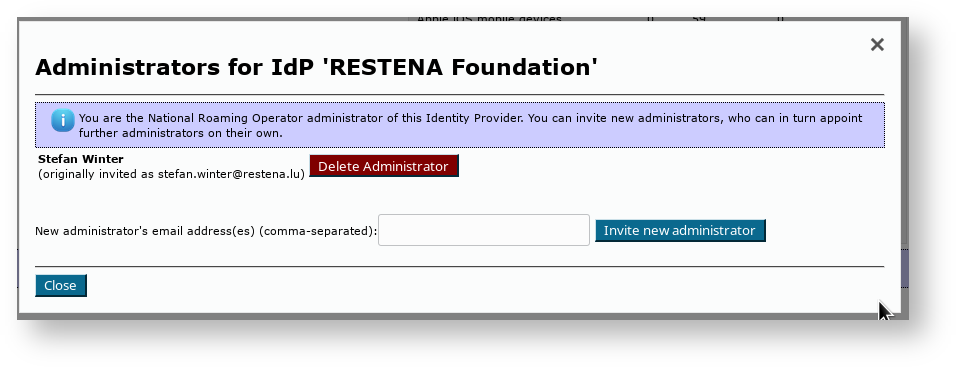
Taking control over an IdP by an NRO administrator
In some exceptional circumstances, it may be necessary that you as the NRO operator directly manipulate an IdP in your NRO. By default, you do not get write access to IdP data of the IdPs which you have invited; they are expected to manage their own IdP in self-service.
...
From this moment on, the IdP will be listed in your Profile Page, from where you can edit and can manipulate it as you see fit.
Automatic addition based on the contents of the eduroam database
This approach is closely related to automatic creation of IdPs but is controlled by a separate option Self registration from eduroam DB: add listed admins to CAT institutions. Also for this to work well you should have synchronization between cat institutions and eduroam DB (described in detail above).
...
- the user’s email address is retrieved from the SAML login;
- a list of all eduroam DB institutions which have this email listed as the admin email is created - let's call it listDB - our goal is to find CAT institutions that do not yet have a corresponding CAT appearance;
- from listDB we remove all institutions that do not a link to a CAT instance;
- from the remaining list we remove institutions where the corresponding CAT institution is already managed by this user;
- if the final list still contains some institutions then we automatically add this user as their admin,
- we display a list of added institutions with a link to an explanation.

Self-addition based on SAML eduPersonEntitlement.
For this to function a few of prerequisites are required.
...
We are not using the token mechanism here since in this case it does not add any extra security to the process.
Requesting RADIUS/TLS Certificates
As an NRO admin, you can use the NRO management interface to request new RADIUS/TLS certificates; both for your own NRO servers as well as for any IdPs and SPs within your NRO.
...
If your CSR does not follow the rules in some way then the problem may either be caught by CAT even before submission to eduPKI or an error returned by eduPKI will be displayed. To avoid this it is best to use the provided example command without making any changes.
UI-less Automated Management: the Admin API (2.0)
As a NRO administrator, depending on the number of IdPs in your NRO, you may find it cumbersome to add IdPs interactively. Or maybe you already have a customer self-service management system where authorised IdP admins could self-enroll without you being in the middle.
...
- Creation of a new IdP
- Creation of a new Profile for an IdP
- Listing and Adding administrators of an IdP
Getting API access
The CAT Admin API requires the NRO admin to be in possession of an API key. The API key is a long random string which needs to be used when executing API actions. The key is also bound to the NRO; i.e. you can only create or query IdPs in your own NRO with it.
API keys are distributed from the eduroam Operations Team to NRO administrators on email request. Please contact eduroam Operations for your Admin API key; API keys from version 1.x continue to be valid for version 2.0.
API Usage
The API is JSON based: you send an HTTP POST with a BODY that contains a JSON construct. The JSON always contains the desired ACTION and the APIKEY. Depending on the ACTION, there may be additional required or optional PARAMETERs.
List of ACTIONs
The authoritative reference for the list of ACTIONs is on GitHub, https://github.com/GEANT/CAT/blob/release_2_0/web/lib/admin/API.php : the class constants API::ACTION_* are the available strings to put into the JSON ACTION field.
List of required and optional PARAMETERs
The authoritative reference for the list of PARAMETERs is on GitHub, https://github.com/GEANT/CAT/blob/release_2_0/web/lib/admin/API.php : the class constant API::ACTIONS contains two sets of parameters each, "REQ" = required parameters, "OPT" = optional parameters,
...
If the parameter is the integer representation of an EAP type, you can look up the number to use in the source (const INTEGER_...).
List of result codes
The HTTP POST will be answered with a "result" field, which is either "SUCCESS" or "ERROR". It is accompanied by a "details" field, which contains either the response details, or in the case of error, an additional "errorcode" and "description".
...
The authoritative reference for the list of error codes is on GitHub, https://github.com/GEANT/CAT/blob/release_2_0/web/lib/admin/API.php : the class constants API::ERROR_*
Example
To create a new institution with a logo (the logo in this example is the eduroam logo) and a name with non-ASCII characters, use the following JSON request:
...